Help centre › Waiter app
Waiter app
Everything a waiter does in a shift: sign in, take a table's order, follow it from the kitchen, serve it and close the bill. The Android app and the web app work the same way; the pictures show both.
Signing in
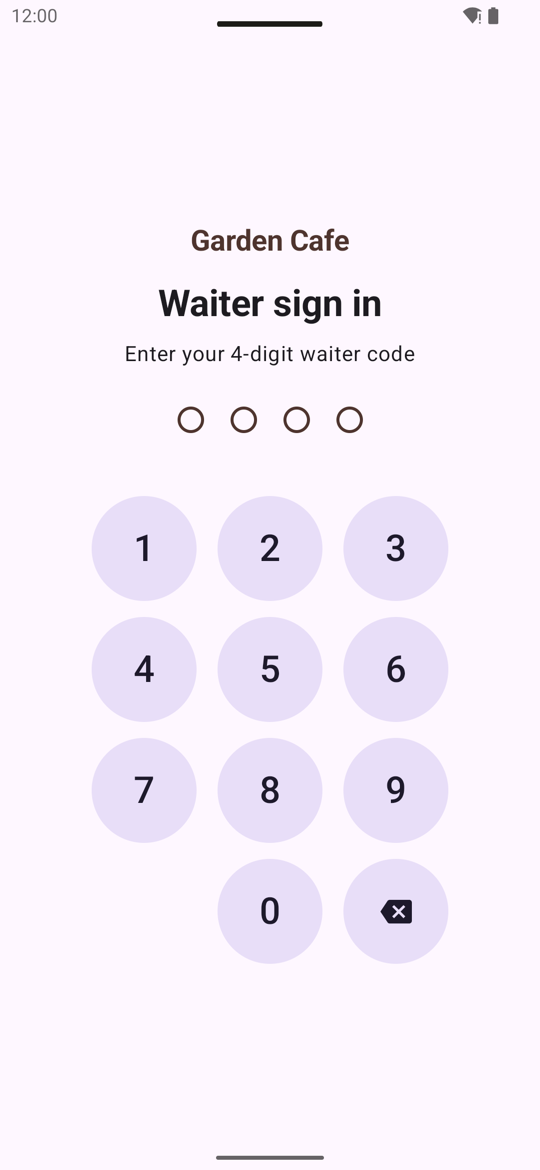
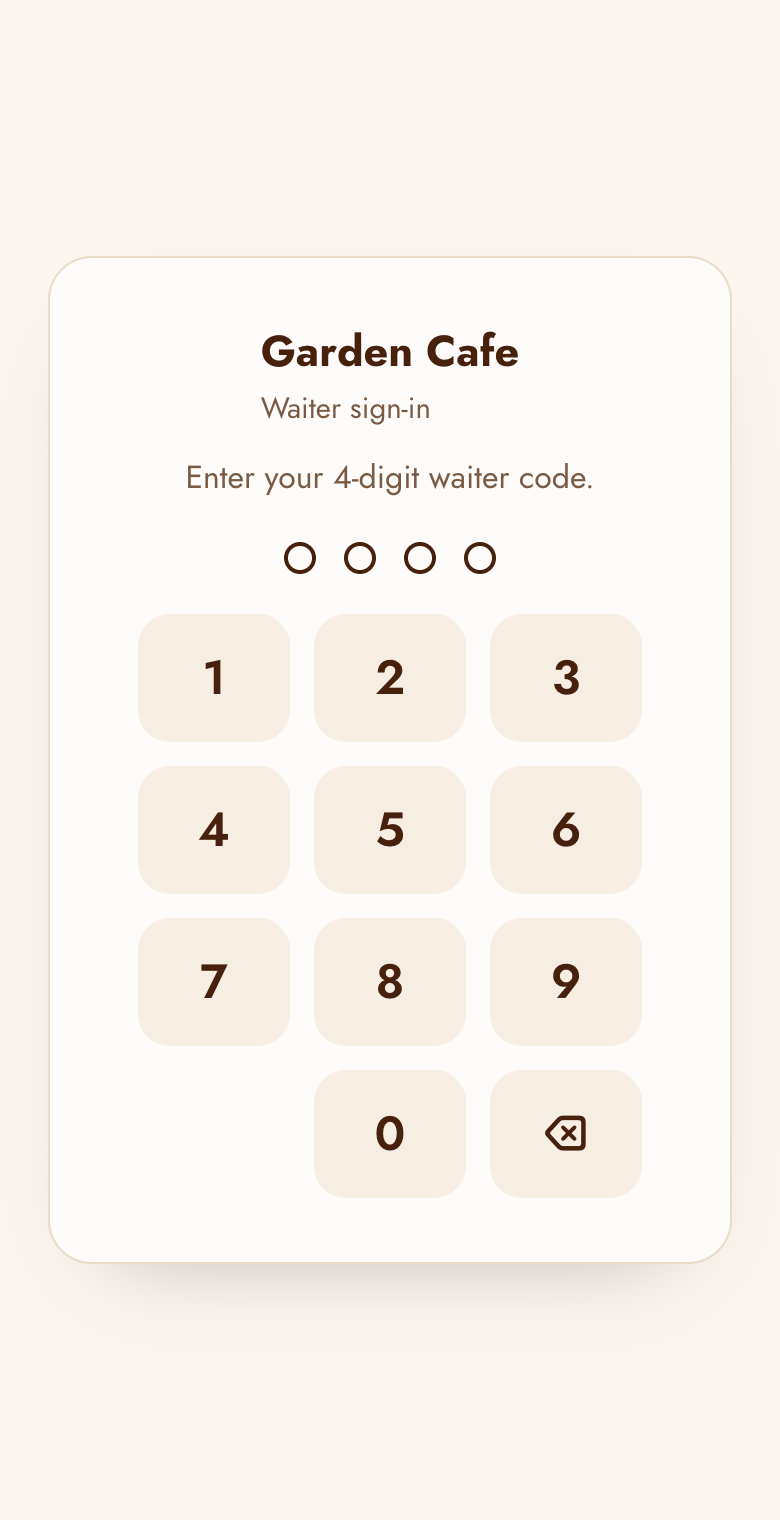
The phone is connected to the cafe once (see Getting started). At the start of a shift, enter your 4-digit waiter code. The manager gives each waiter a code under Manage waiters.
- "Wrong code": ask the manager for your code (it's listed under Manage waiters).
- Sharing a phone? Tap Switch waiter and the next person signs in with their own code.
The tables screen
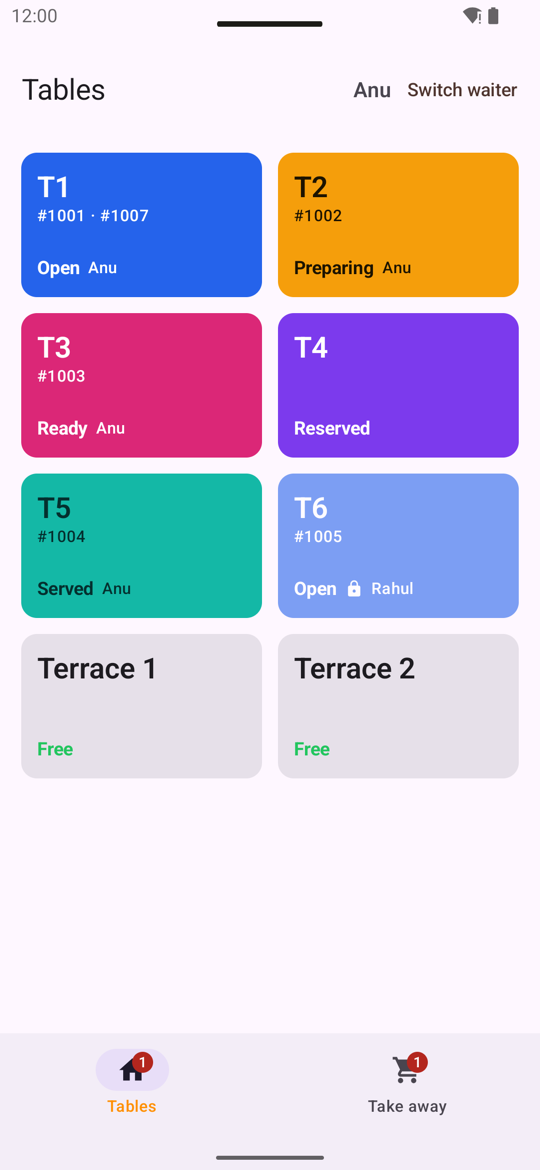
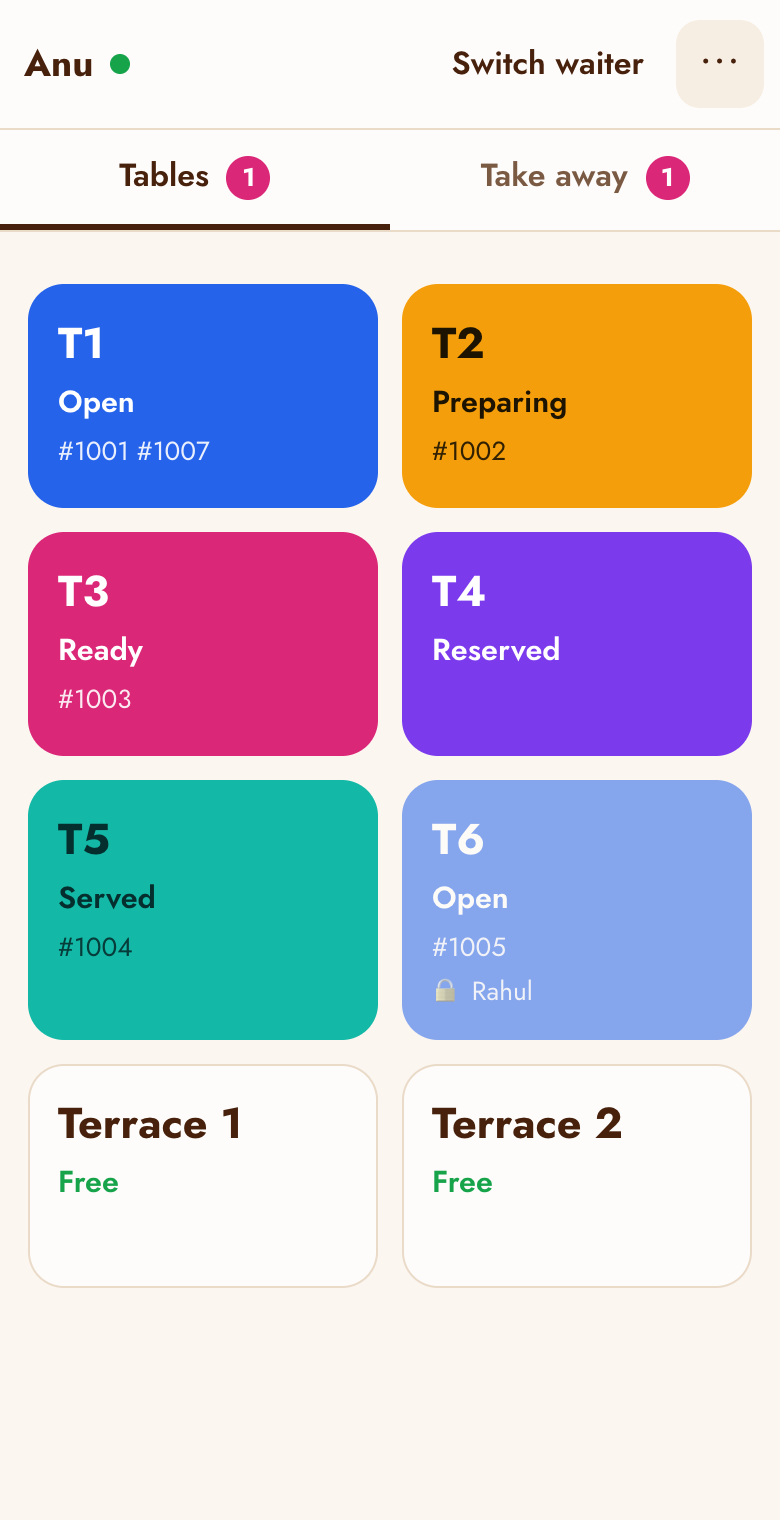
Every table, with its state as a colour, so you can see the whole room at a glance:
| State | Means |
|---|---|
| Free | No open bill. Tap it to start an order. |
| Reserved | Held for a booking (the manager sets this). You can still seat guests there. |
| Open | Order sent; the kitchen hasn't started it yet. |
| Preparing | The kitchen is making it. |
| Ready | Food is waiting at the pass: bring it out. Your phone alerts you when one of your tables turns ready. |
| Served | Everything is on the table; the bill is still open. |
Taking an order
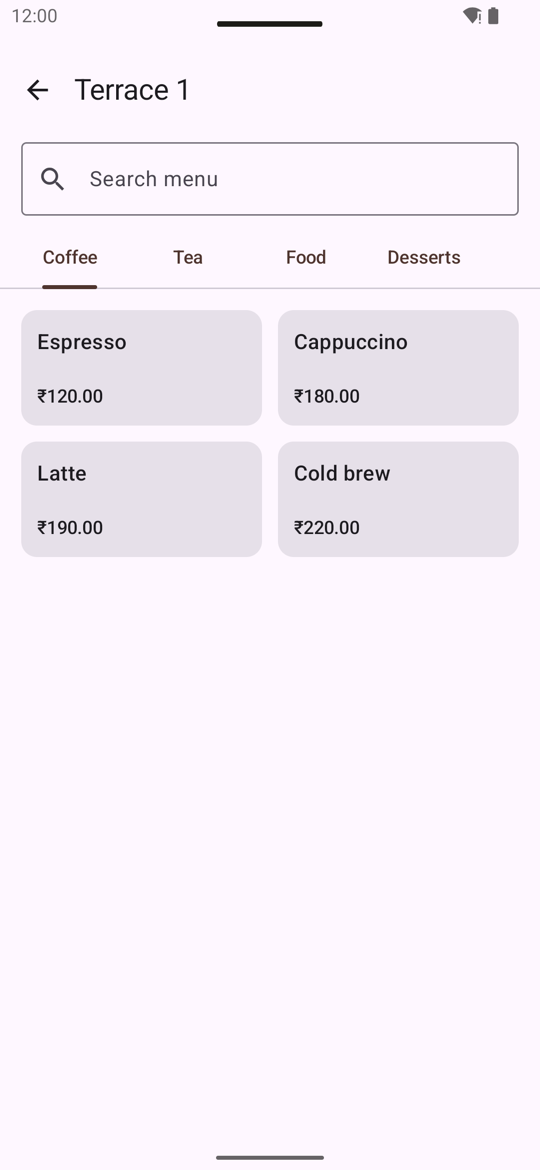
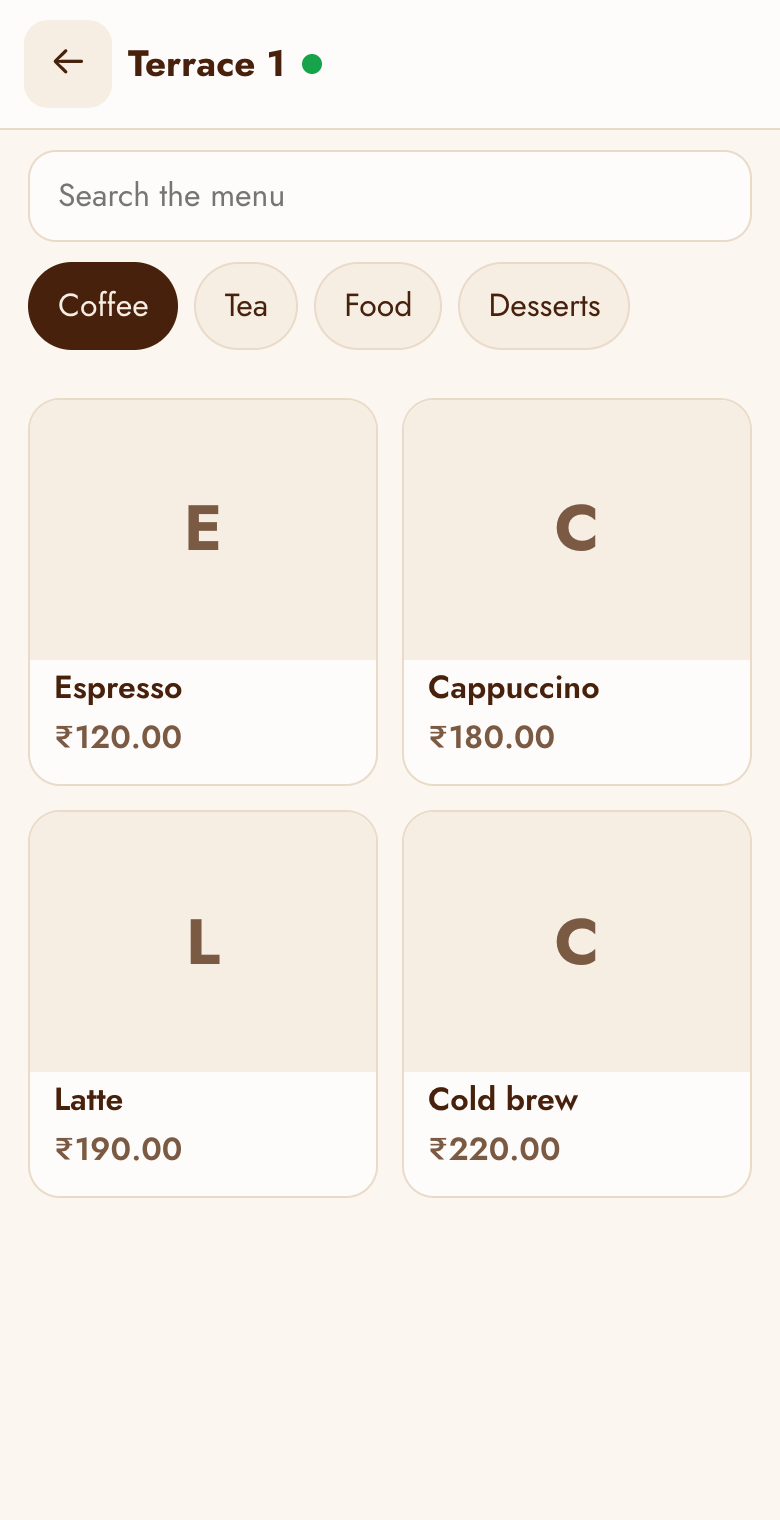
- Tap a free table. The menu opens, by category; Search the menu finds an item by name.
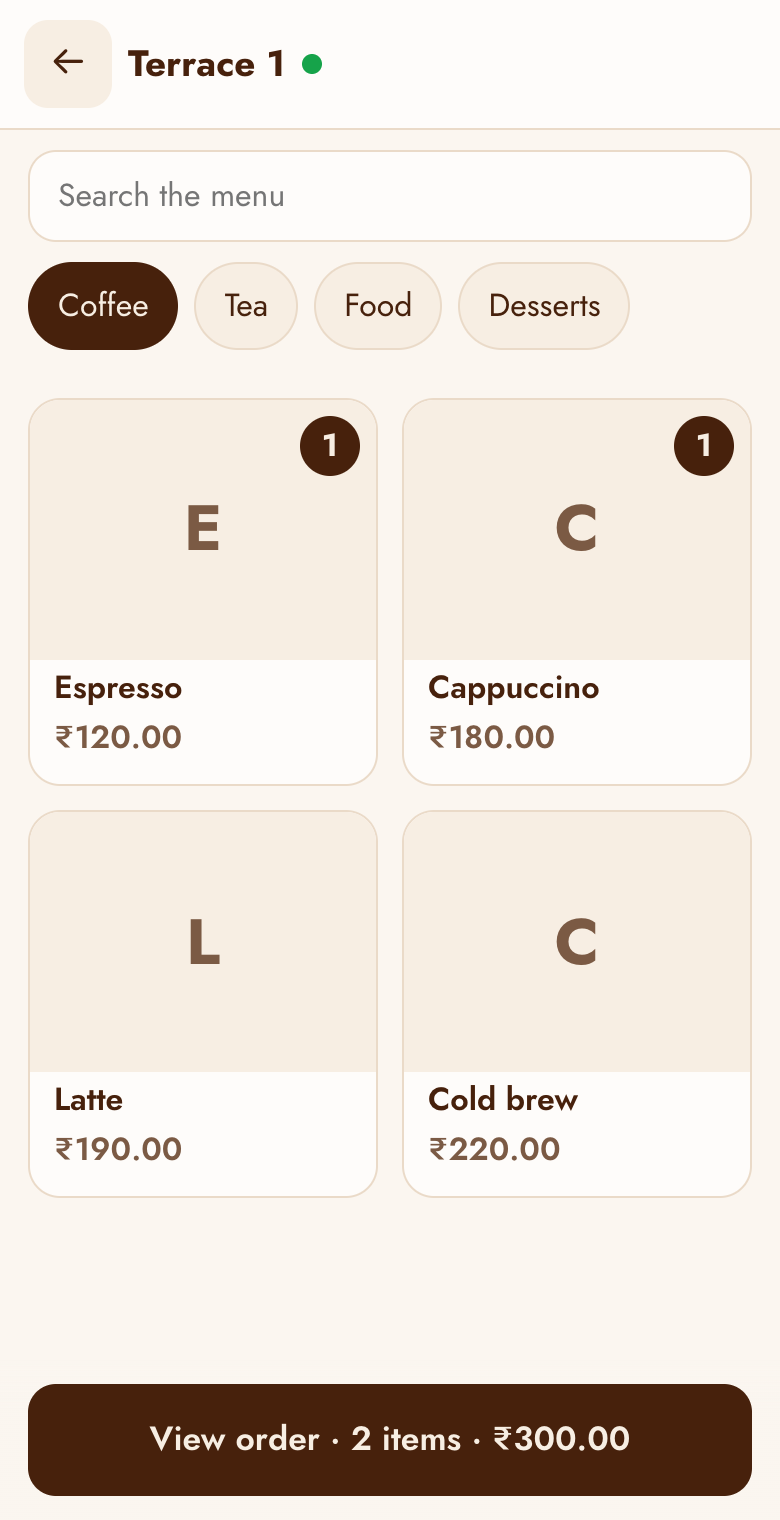
- Tap an item to add it; tap again for one more. Items marked Sold out can't be added.
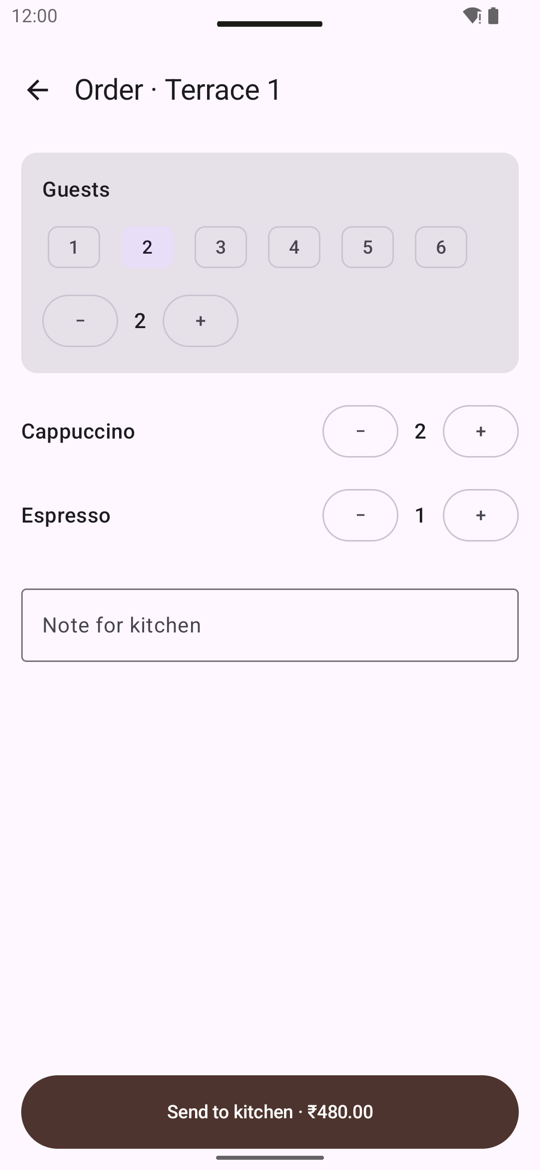
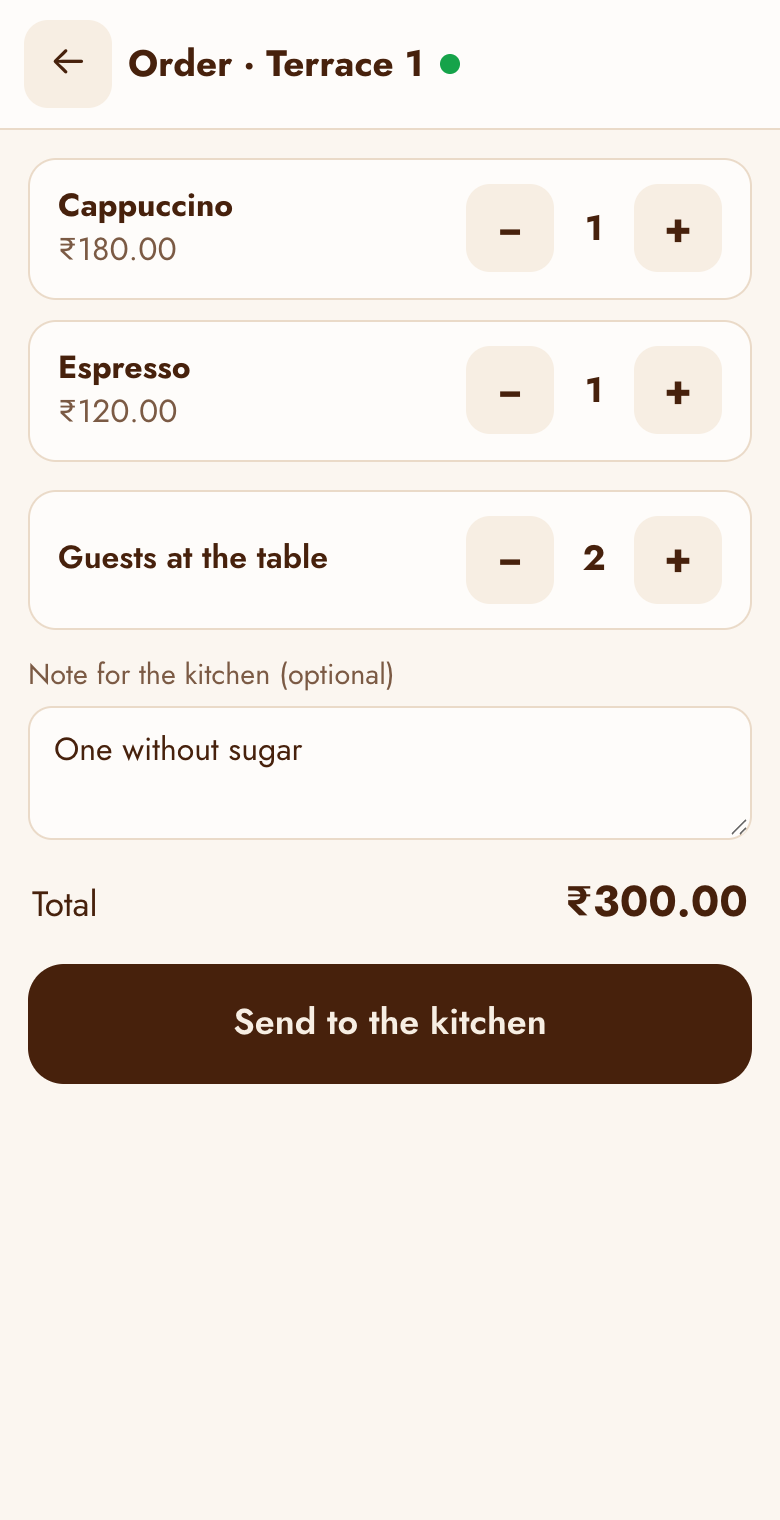
- Open the order: change amounts with − and +, add a note for the kitchen (e.g. No onions, extra hot…) and, on a table's first order, the number of guests (up to 99). In the Android app, Send to kitchen turns on once the guests are picked.
- Tap Send to the kitchen. The order appears on the kitchen board straight away.
Take away
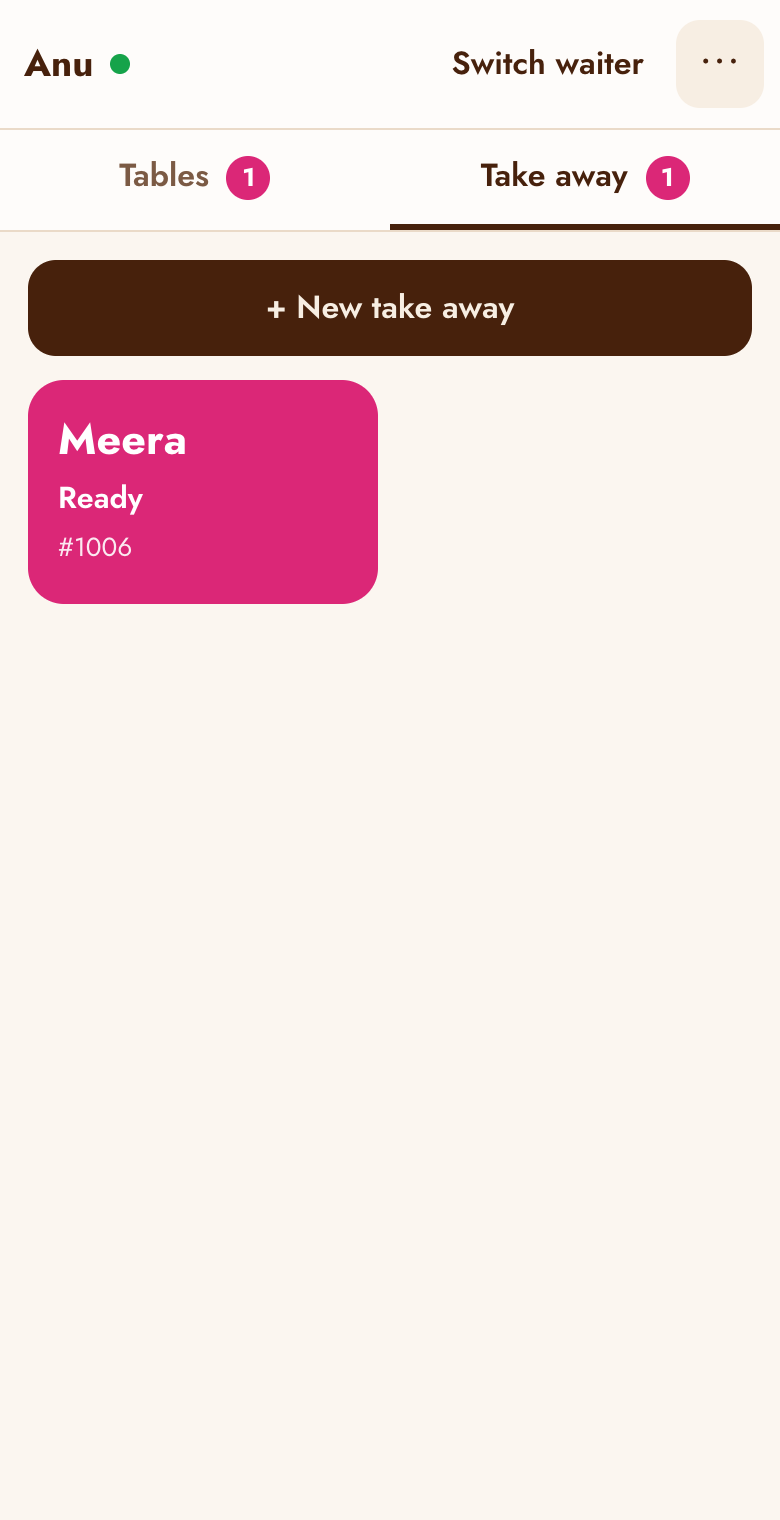
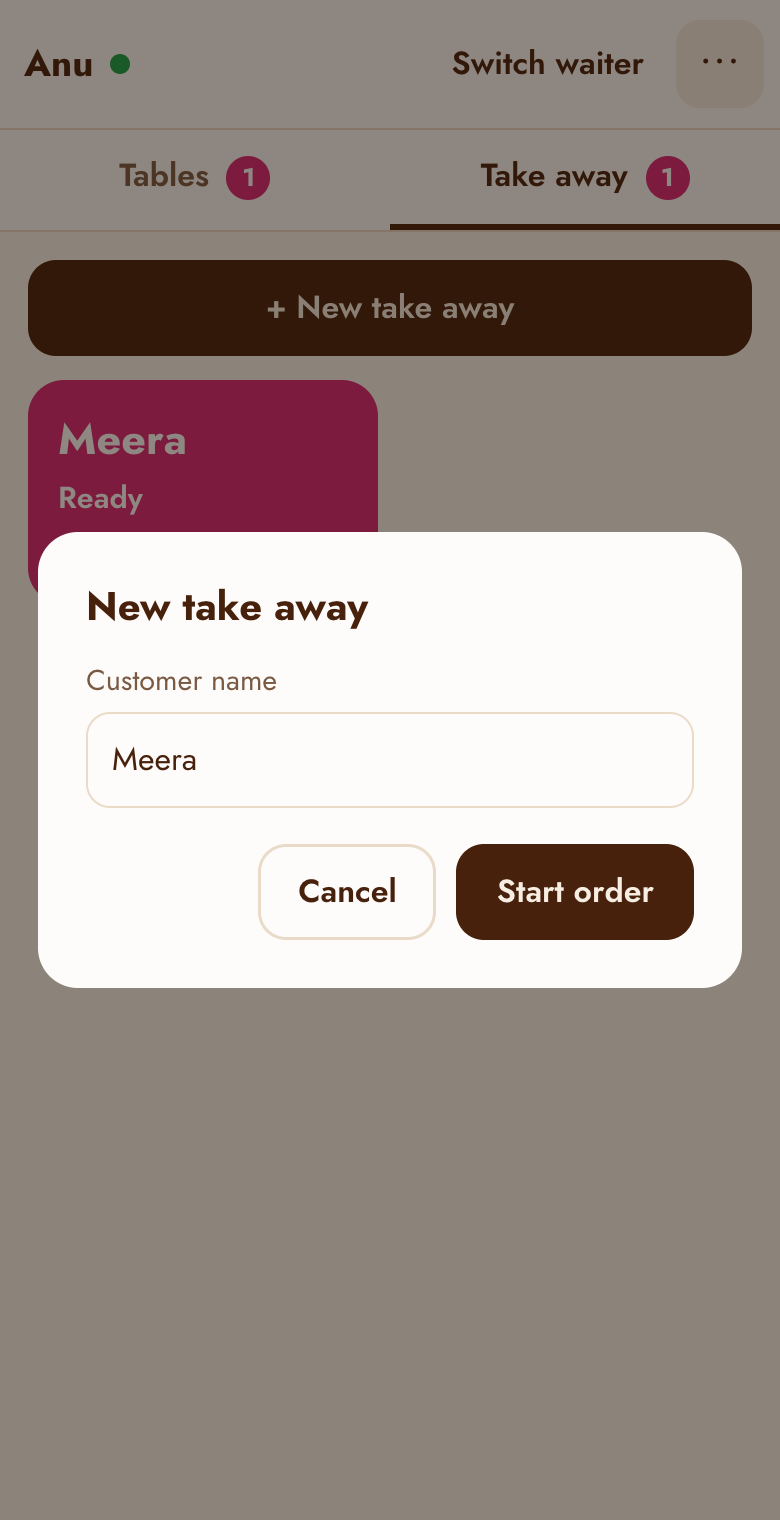
Waiters the manager has allowed to take take-away orders see a Take away tab.
- Tap New take away and type the customer's name (up to 30 characters).
- Add items and send, as for a table. The order is called by the name on the kitchen board and the TV.
The bill
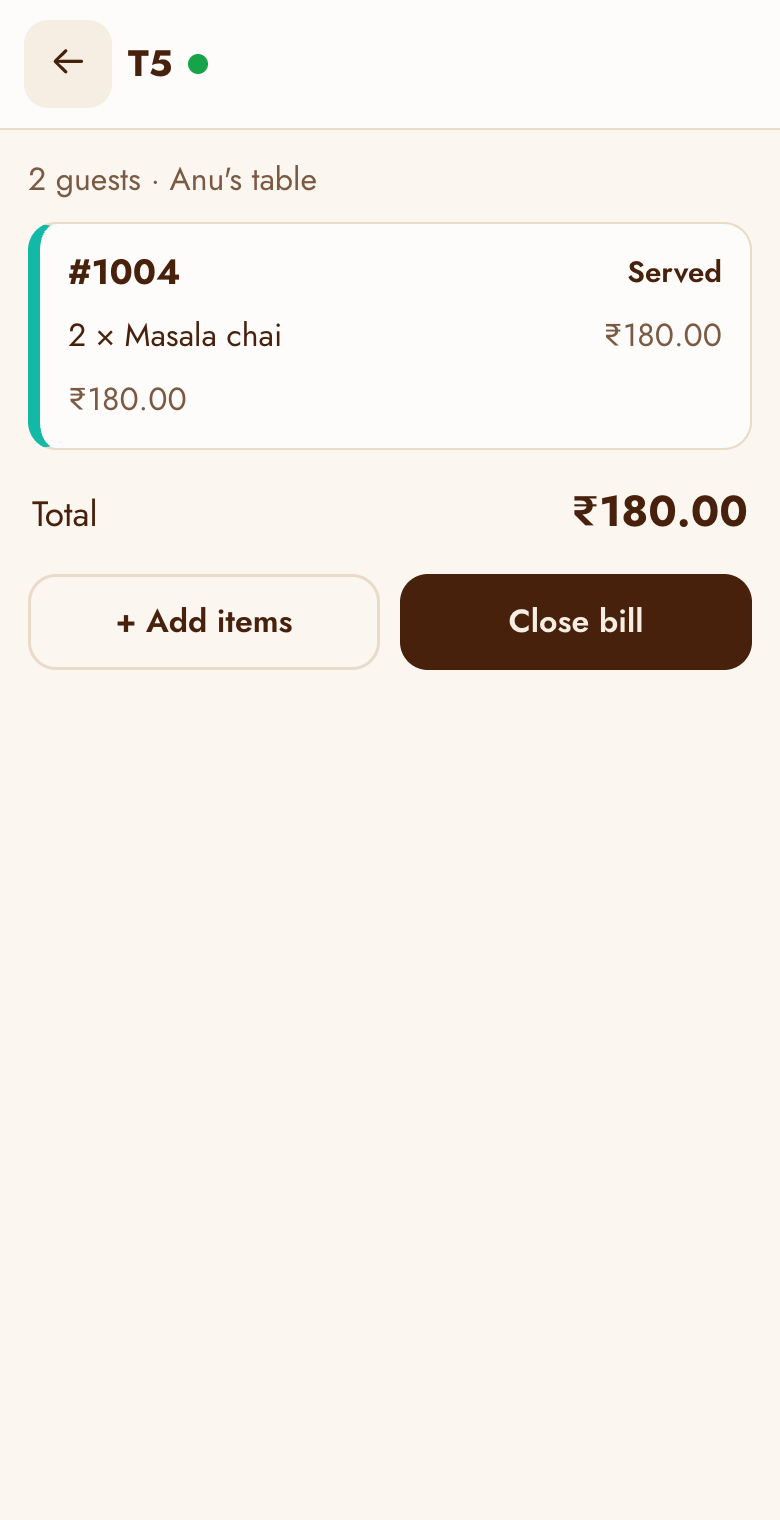
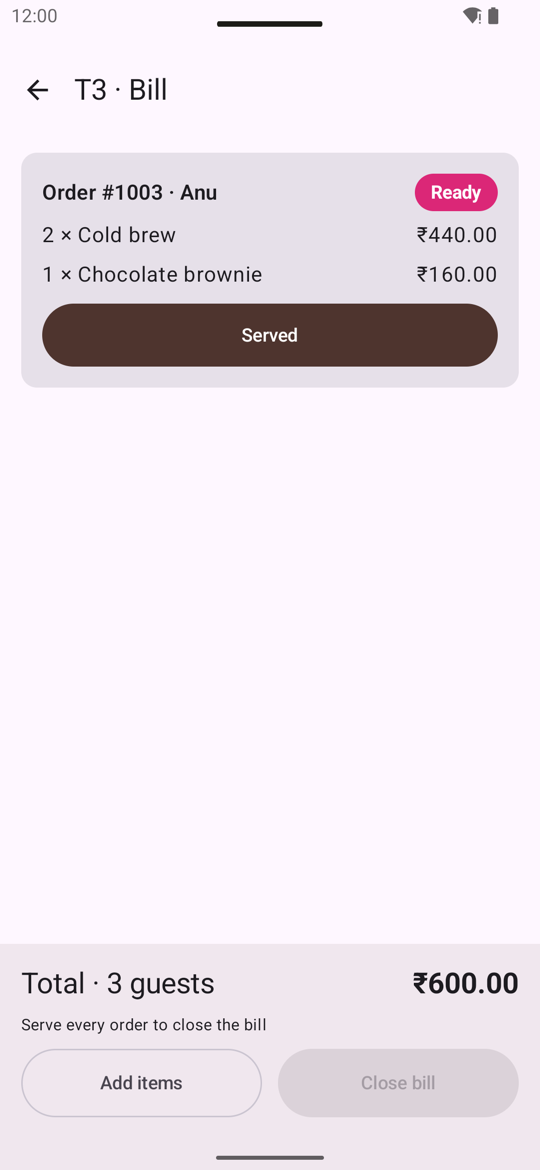
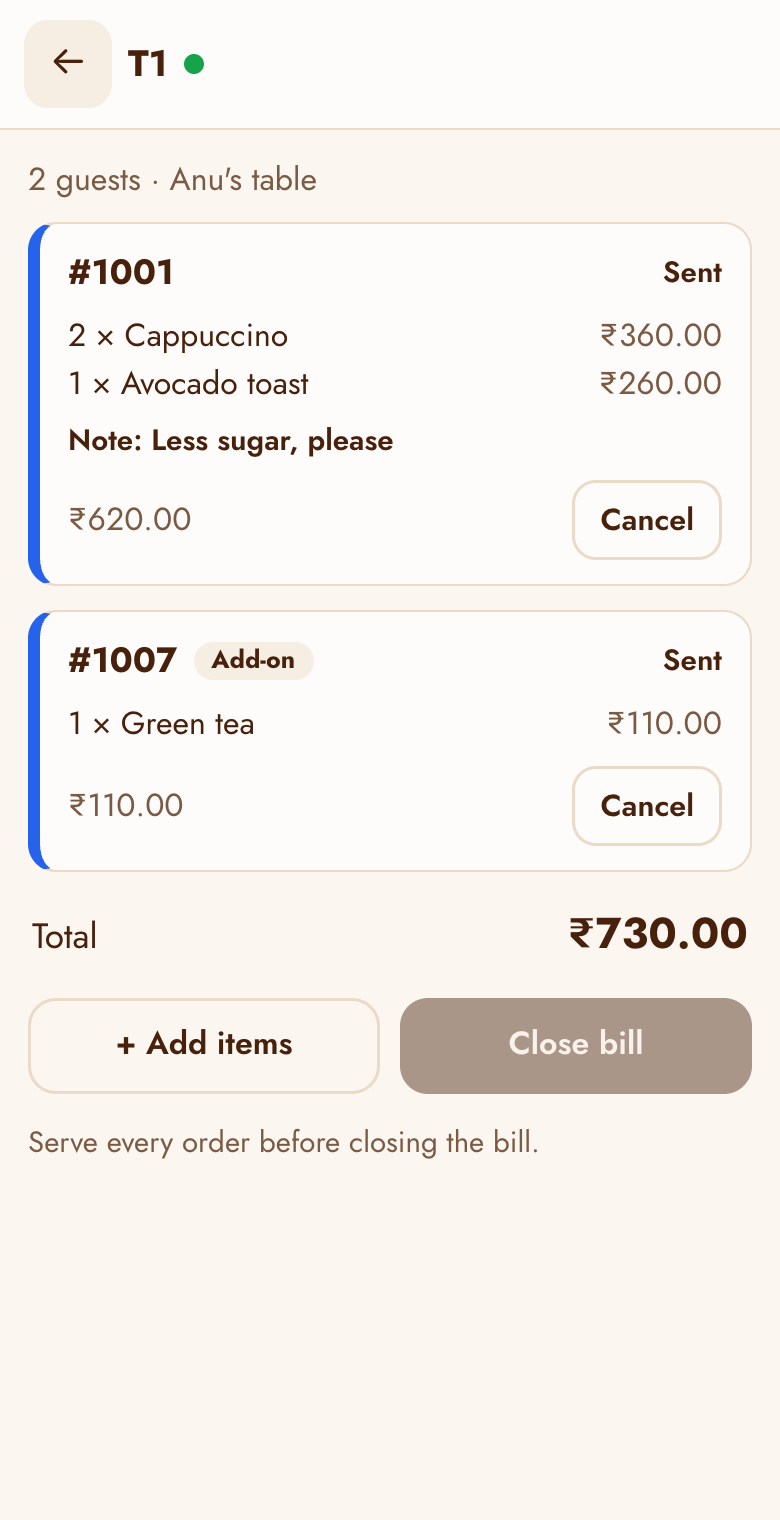
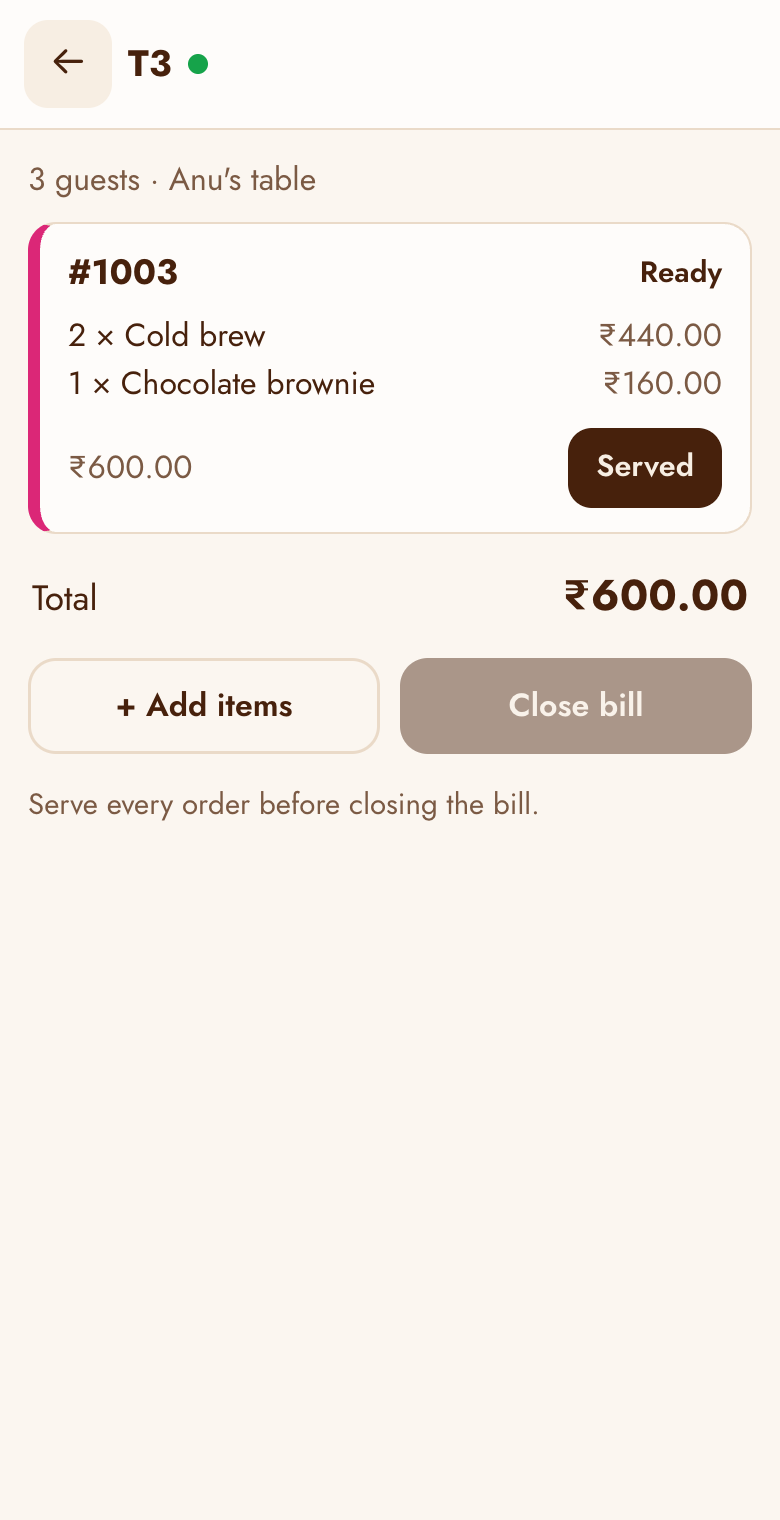
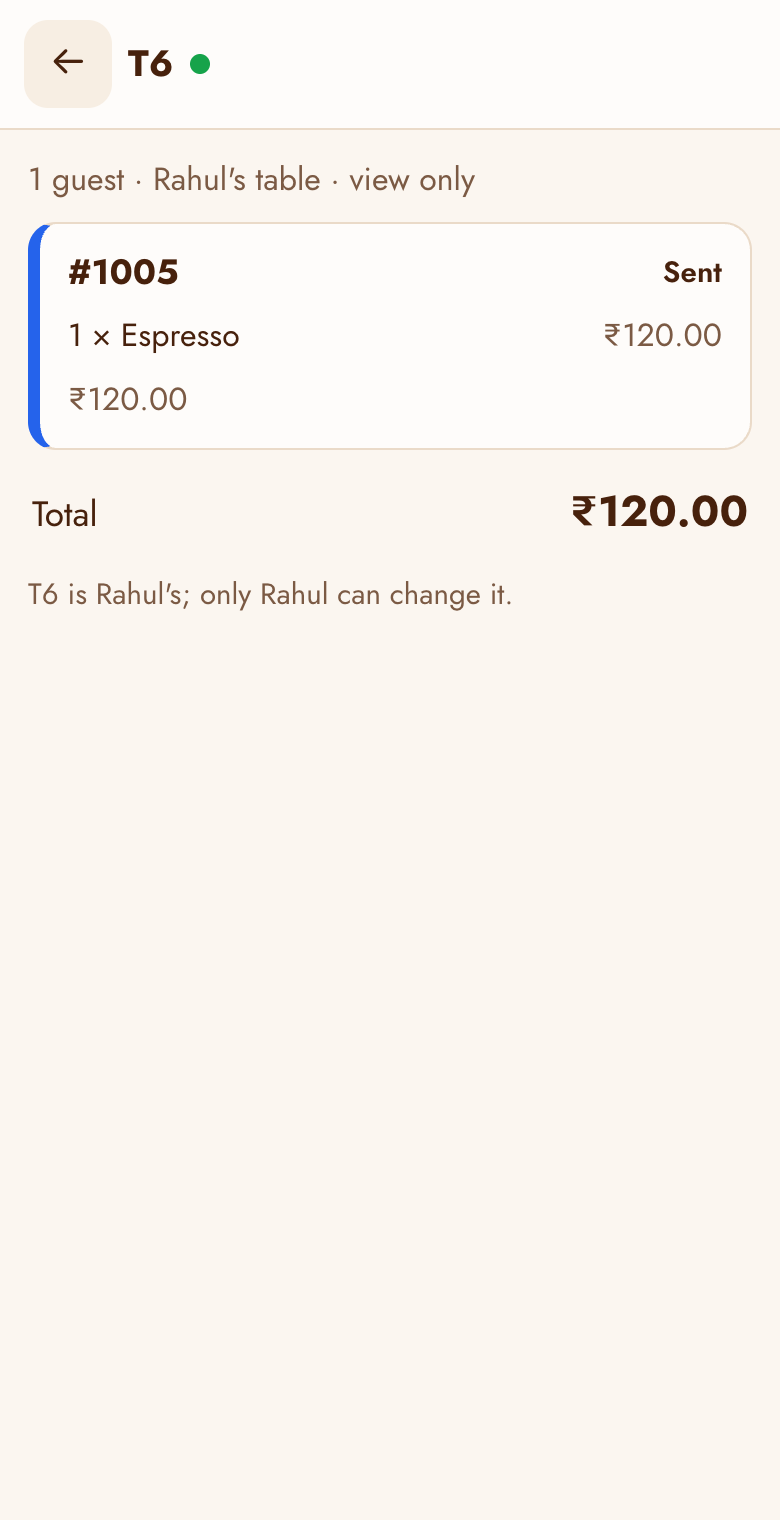
Tap a table that's in use to see its bill: every order with its state (sent, preparing, ready, served or cancelled) and the total. Cancelled orders are shown as Not charged.
- Ready: when you've brought it, tap Served.
- Cancel an order: possible only before the kitchen starts it. Pick a reason (Out of stock, Ordered by mistake, Customer left, Took too long) or type one.
- Someone else's table: a bill belongs to the waiter who sent its first order. Others can see it but not change it.
Closing the bill
When every order is served (or cancelled), Close bill turns on.
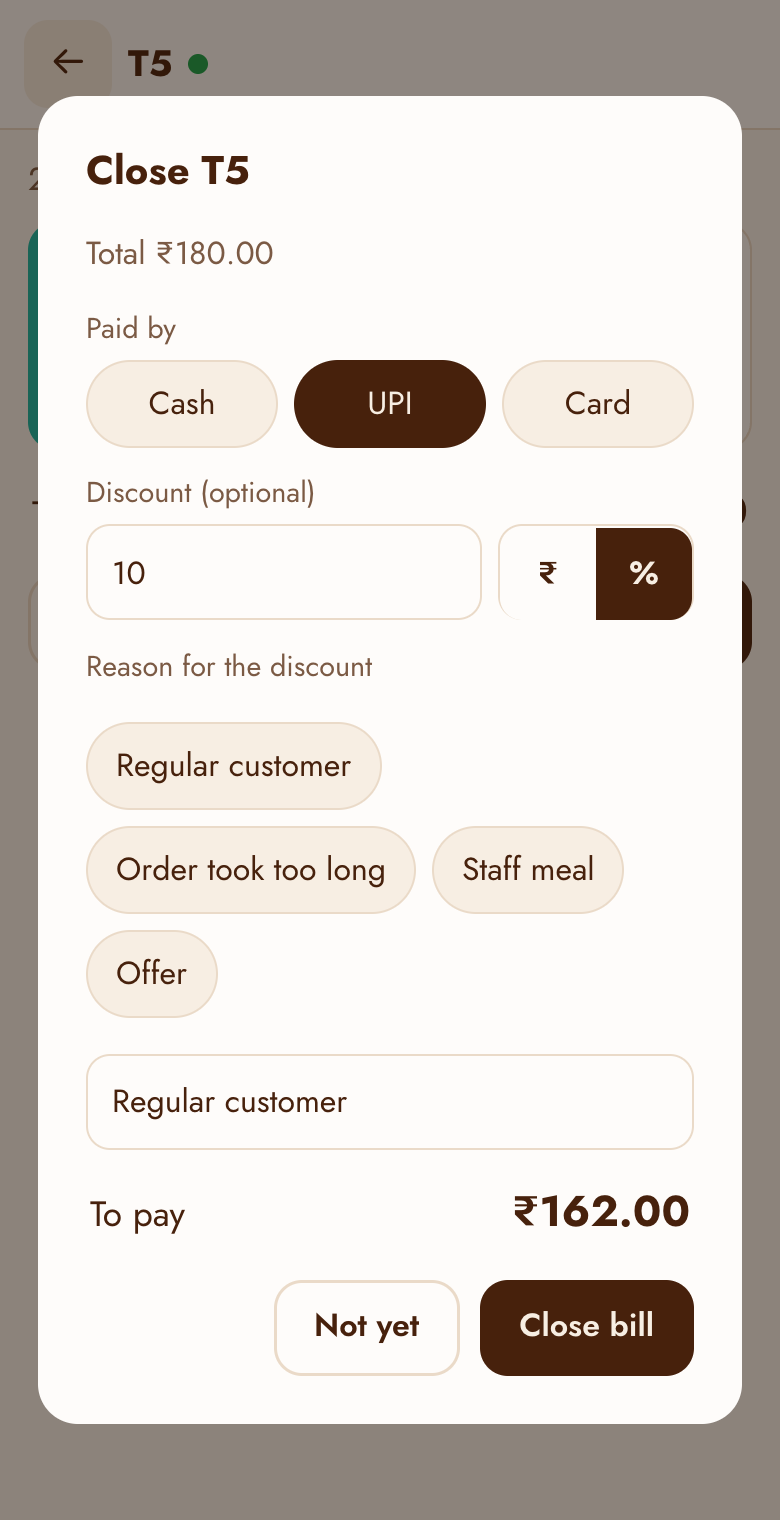
- Tap Close bill.
- Choose how they paid: Cash, UPI or Card.
- A discount? Enter it in ₹ or as a %, and give a reason (Regular customer, Order took too long, Staff meal, Offer, or your own). A discount can't be more than the bill.
- Tap Close bill. The table is free again and the sale counts in the Reports.