Help centre › Kitchen board
Kitchen board
The kitchen tablet shows every order in three columns: New, In progress and Ready. One tap moves an order on; the waiters' phones and the TV follow within seconds.
Starting the board
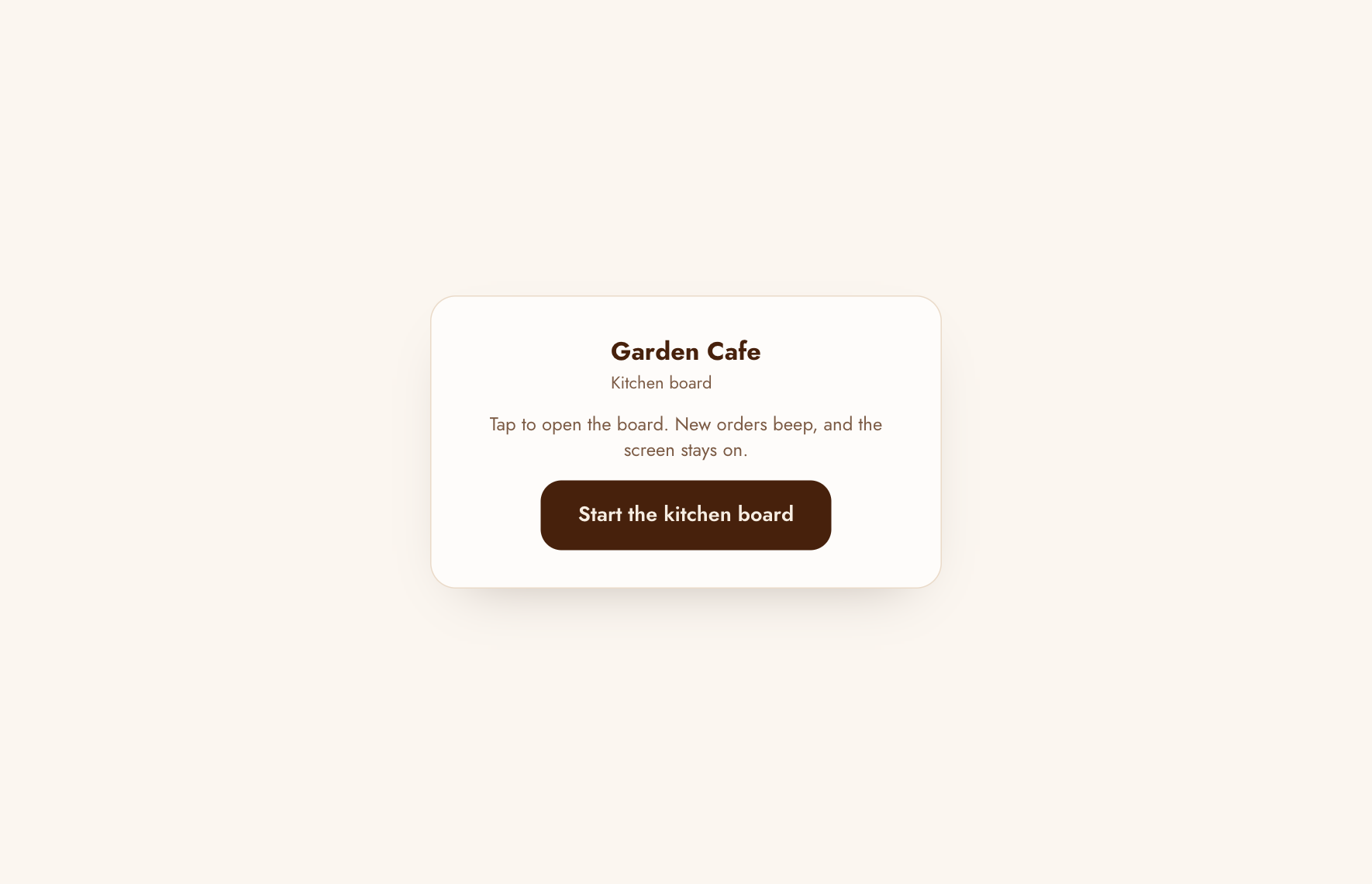
On the web board, each time it opens, tap Start the kitchen board. Tablets only play sounds after a tap, so this is what lets the board beep for new orders.
Reading the board
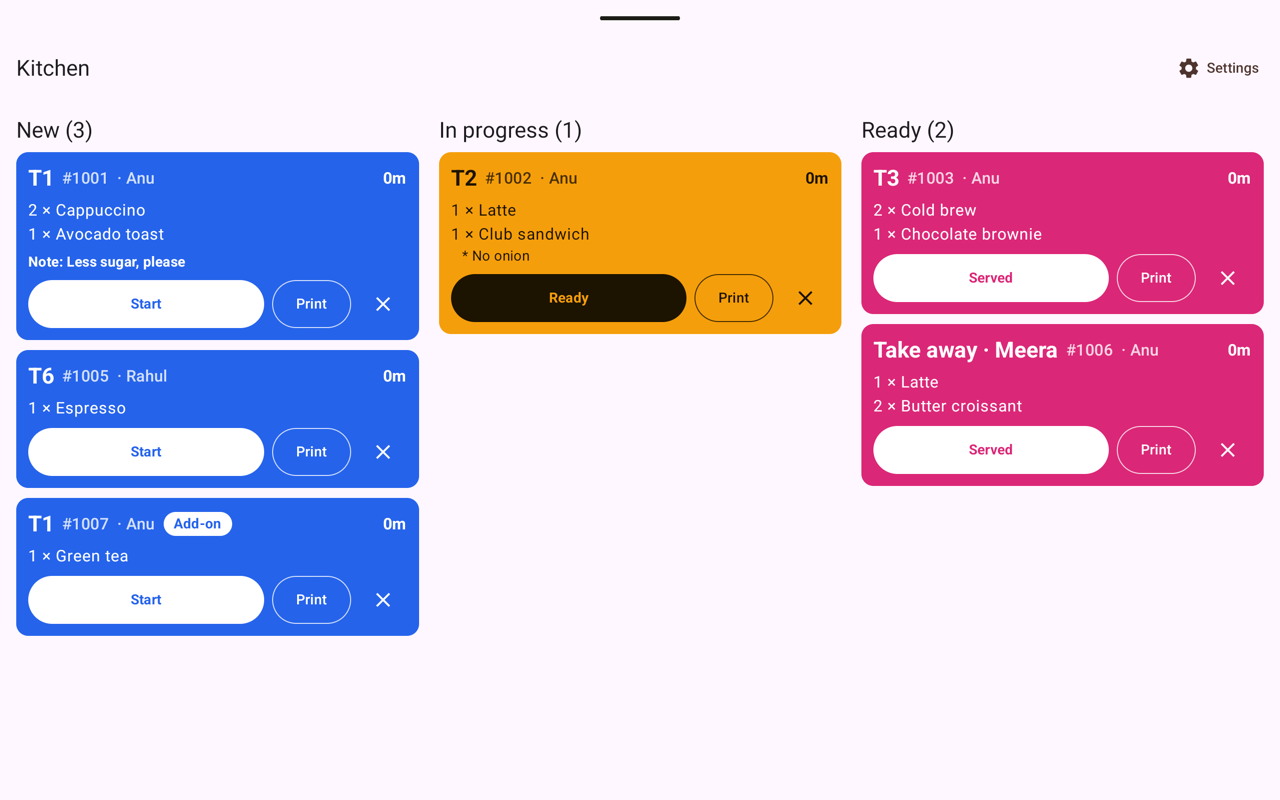
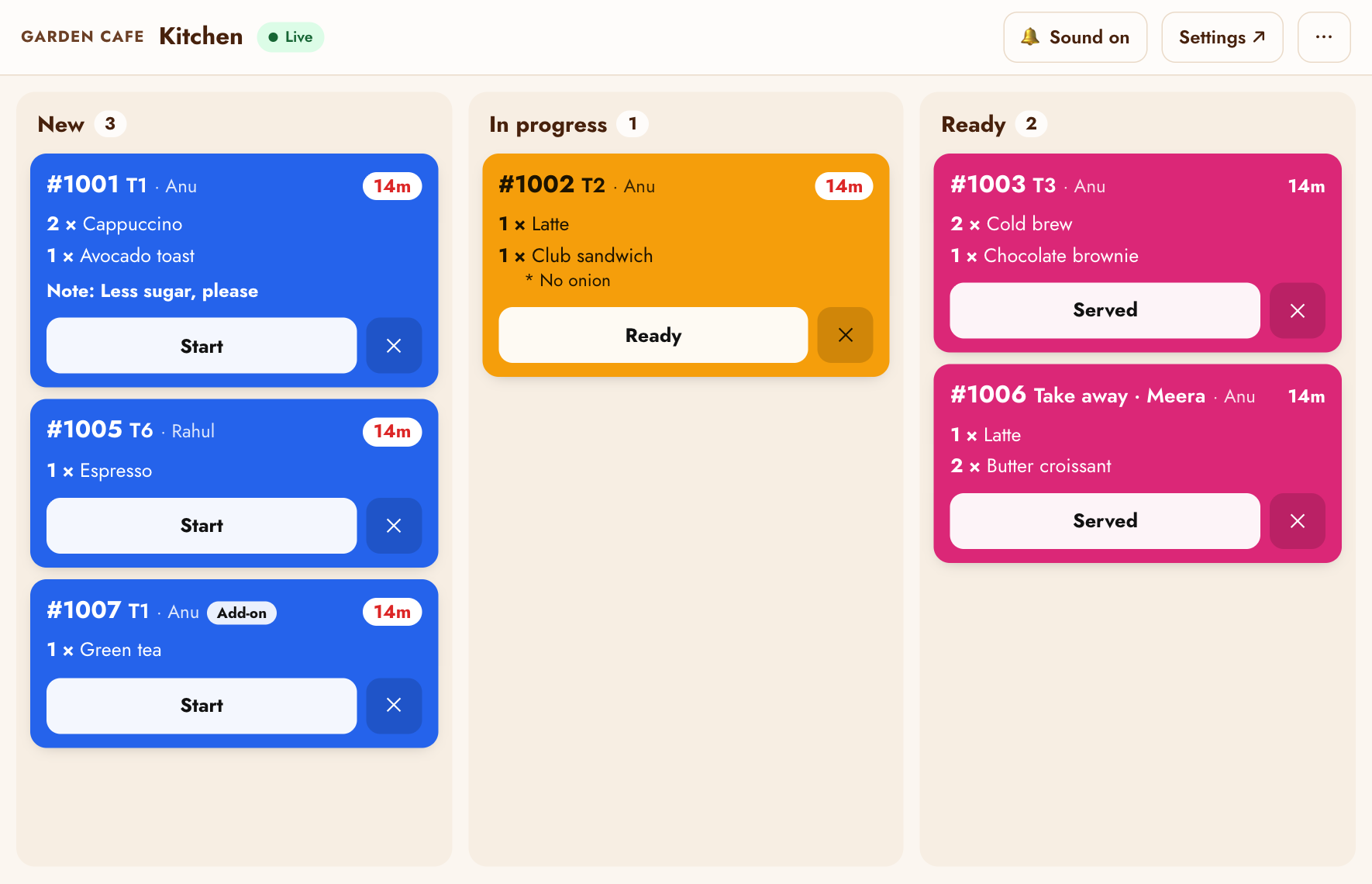
Each ticket shows the order number, the table (or Take away · name), the waiter, the items with their notes, and how long ago it was ordered. An Add-on badge means more for a table that already has food.
- The time turns amber after 5 minutes and red after 10 minutes, so late orders stand out.
- On the web board, Live at the top means the board is up to date. Connecting… means it's lost the connection; it catches up by itself when the Wi-Fi is back.
- Both apps beep once for new orders; on the web board, Sound on / Sound off switches it.
Moving orders along
- Start when you begin an order: it moves to In progress and the waiter sees Preparing.
- Ready when it's at the pass: the waiter's phone alerts them, and the TV and track page say ready.
- Served if the kitchen hands it over itself (otherwise the waiter marks it served).
Cancelling an order
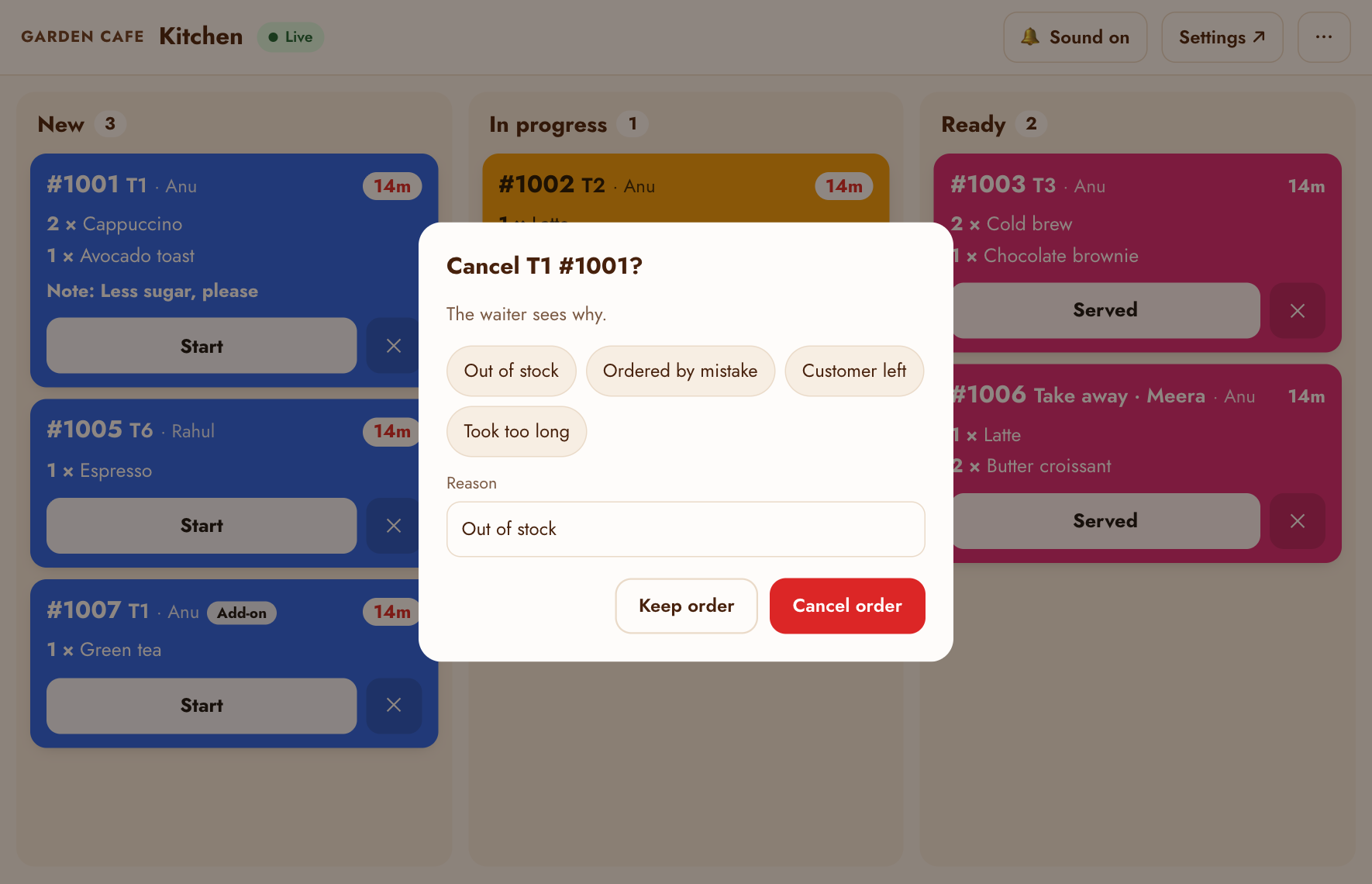
Tap ✕ on a ticket, pick a reason (Out of stock, Ordered by mistake, Customer left, Took too long) or type one, and tap Cancel order. The waiter sees why, and the order isn't charged. The kitchen can cancel any order that hasn't been served.
Settings
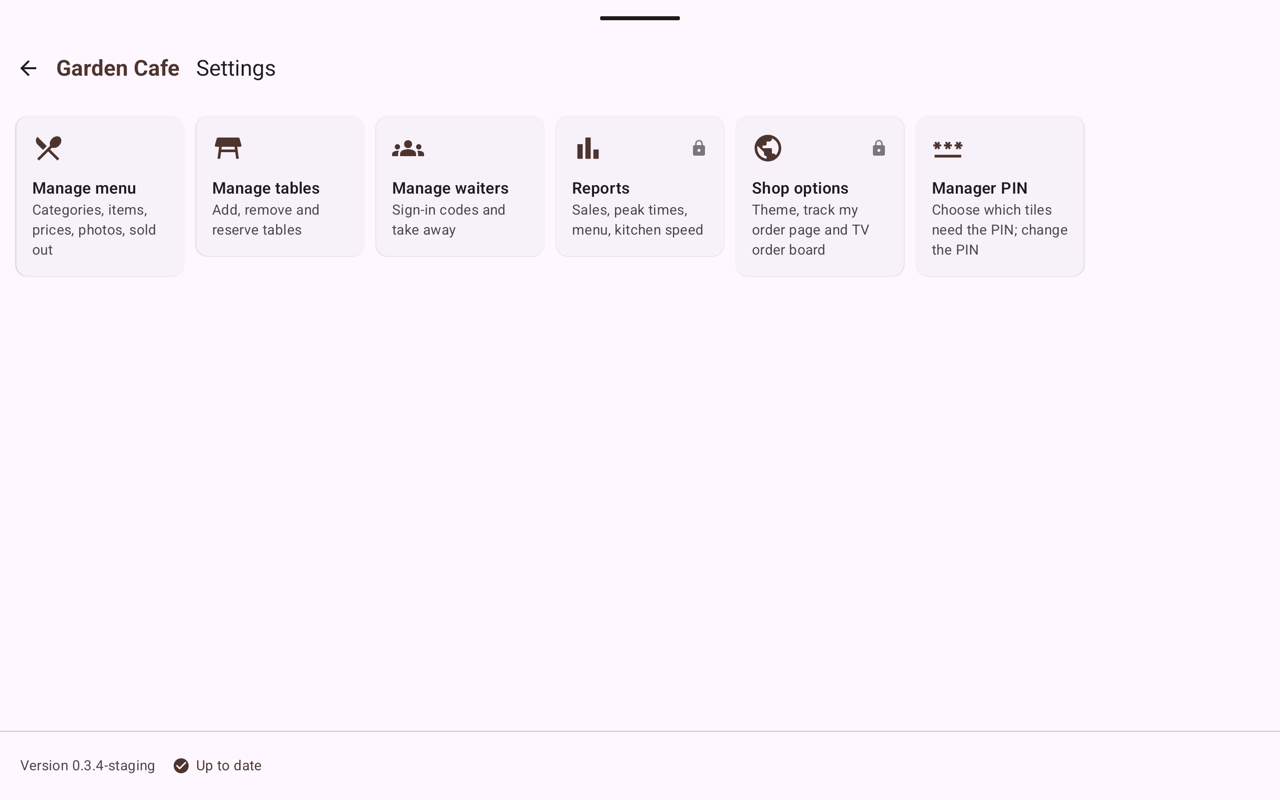
In the Android kitchen app, Settings (top right) holds the manager tiles: Manage menu, tables and waiters, Reports, Shop options and Manager PIN. A lock on a tile means it asks for the PIN. The bottom line shows the app's version. On the web board, Settings ↗ opens the same things on the manager page. See Manager settings.
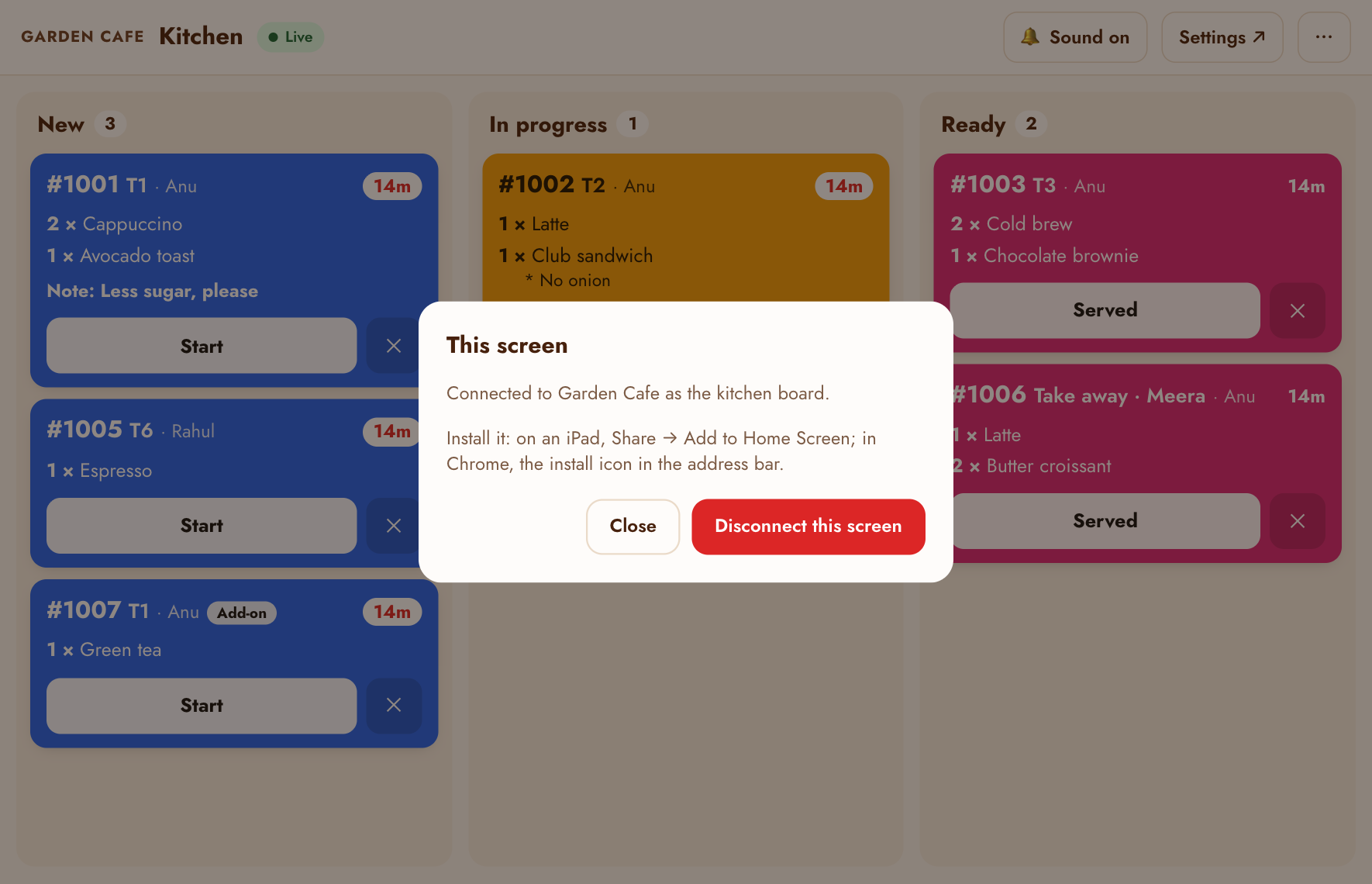
On the web board, the ⋯ button shows which cafe this screen is connected to and lets you disconnect it (to hand the tablet to another cafe, or reconnect with a new PIN).
Printing tickets
The Android kitchen app prints each new order by itself on a network receipt printer in the kitchen, and beeps; the Print button on a ticket prints it again (a lost or smudged ticket). The printer is set up by the Tablepour team: email us its make and model and we'll help you connect it. (The web board doesn't print.)